
How to Highlight Text in Canva | Both The Simple and Creative Way!

Hi everyone! I'm Josh, a writer at Xenyo. And for the next couple of days, my task is to write "design" content. So I thought "why not write about literally the only design tool I've ever used, Canva!". Here, you'll get to read some useful Canva tutorials, tips, and tricks!
Highlighting texts is one of the basic things you need to learn in any graphic design tool. However, sometimes it’s not obvious, even for Canva, which is often touted as the easiest and most intuitive graphic design software out there.
So, where’s the highlight button? Clue: it’s not called “Highlight”.
Below, you’ll see two step-by-step guides on how to highlight texts in Canva, both the simple and the all-out creative way!
The Simple Way of Highlighting Text in Canva
If you just want to highlight something quick, here are 4 simple steps to follow! This method only involves basic highlights with limited personalization such as adjusting roundness or width. However, note that this method might not work with some font combinations (The types of font with grand text effects).
Step 1: Click on the Text you want to Highlight
The first step is to select the text box you plan on highlighting. Here, you’re basically telling Canva, “Hey, I want to edit this thing!”. You can customize the heading, subheading, body text, and some font combinations.
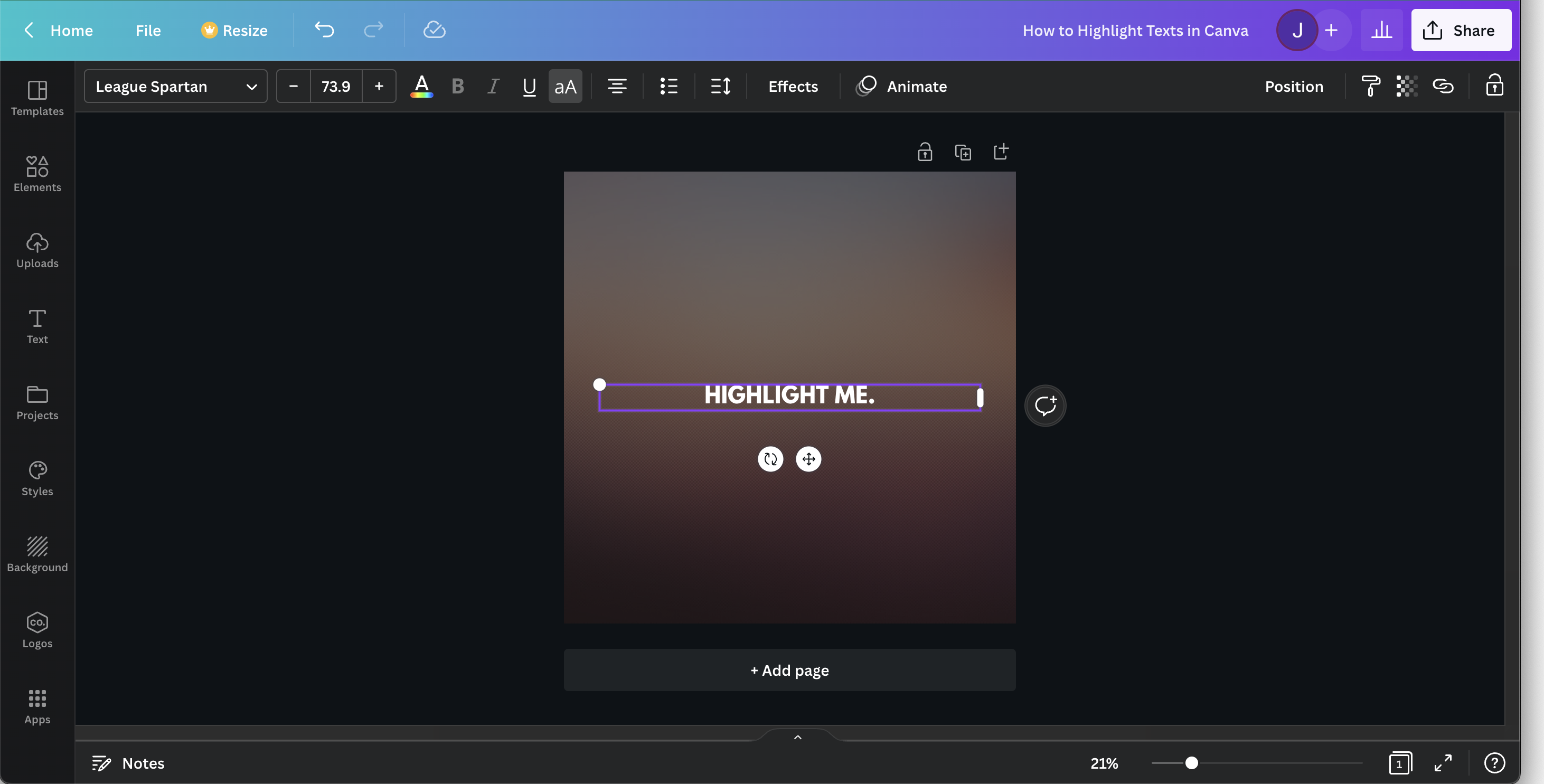
Step 2: Select “Effects” on Top
Once you're done with that, a toolbar will show up on top. On this toolbar, click on the Effects option.
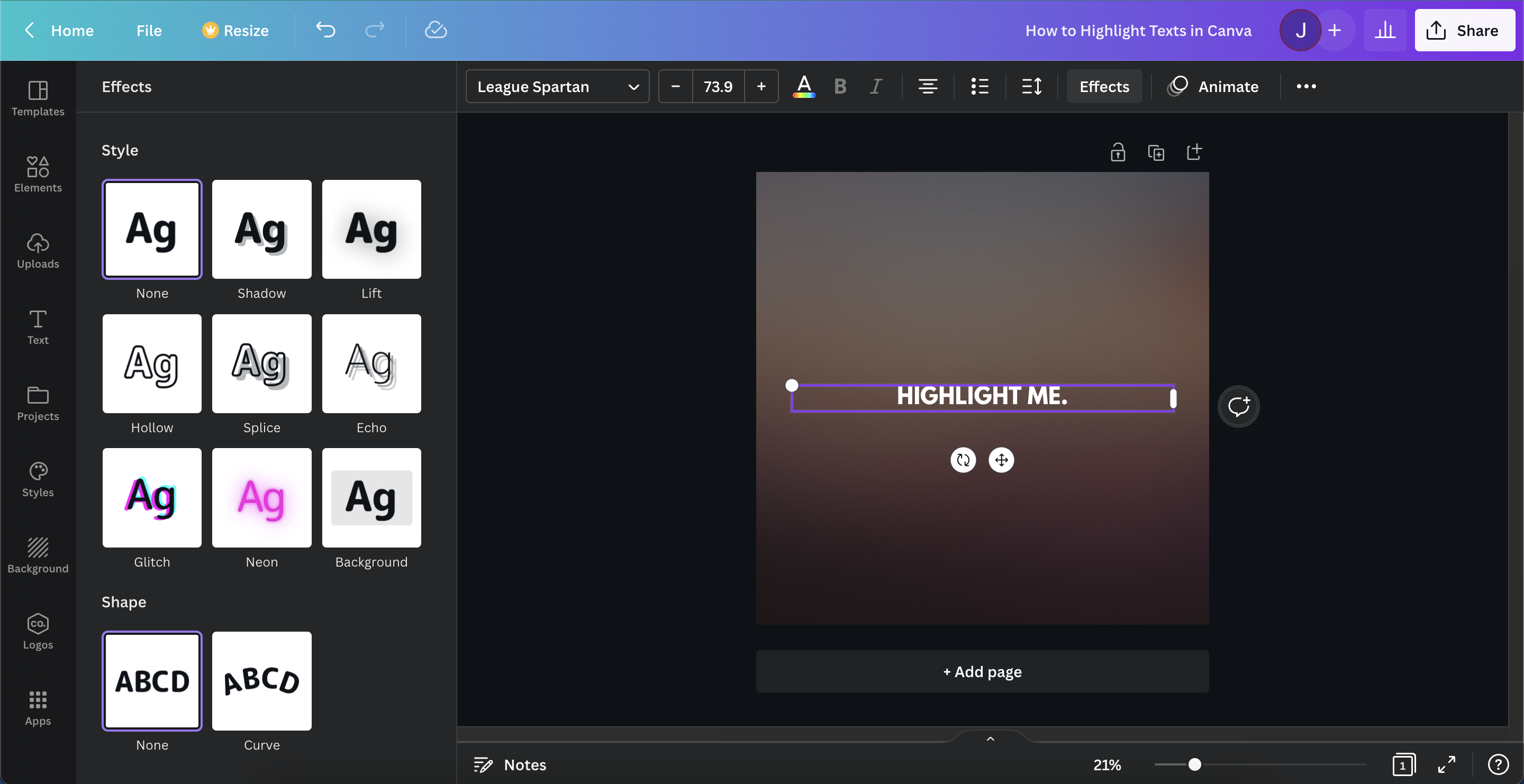
Step 3: Choose “Background” from the Style list
Clicking “Effects” will reveal a selection of styles and shapes you can choose from. Here, you have various options for changing the way the highlight looks, like roundness, spread, transparency, and even background color! Once you’re done selecting what you like and making sure everything is according to your style, click on “Background”.
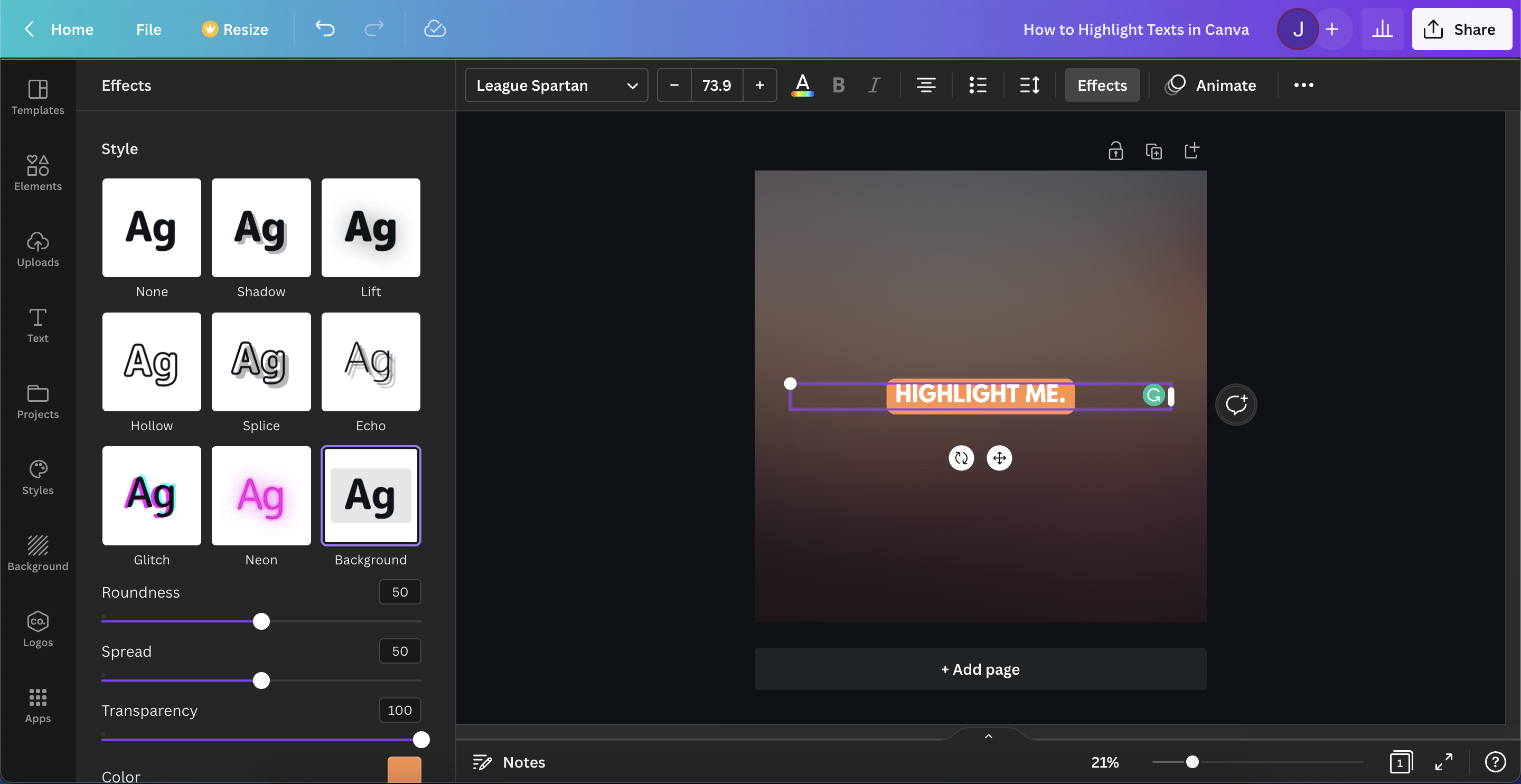
Step 4: Adjust its Design
Change the way it looks by sliding the bar for roundness, spread, and transparency!
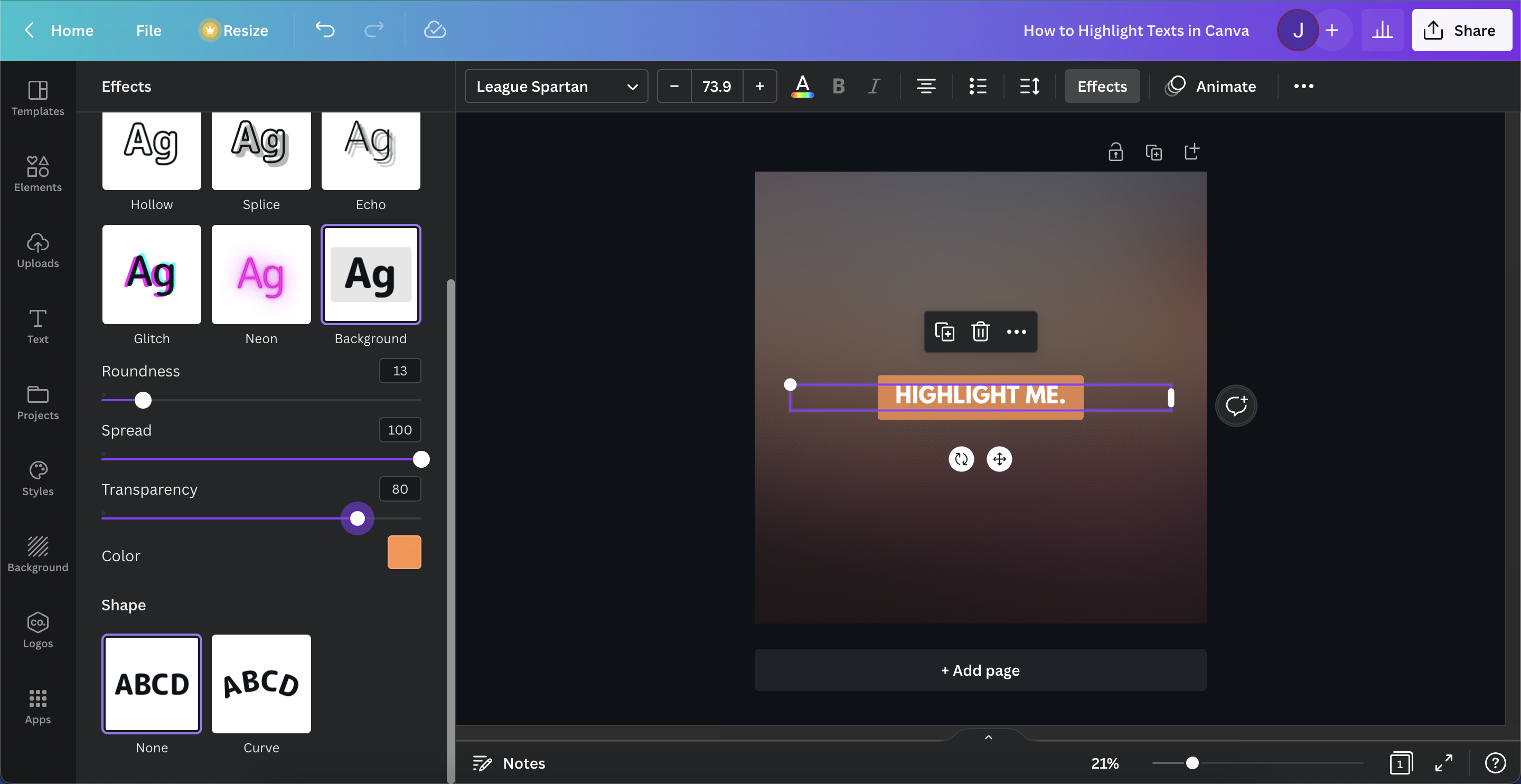
Quick tip: To remove the text highlight, follow steps 1 to 2 and choose “None” from the Styles section.
The Creative Way of Highlighting Text in Canva
Are basic text highlights not enough? This method involves more styles that might be better suited to your overall design.
Step 1: Head to “Elements” on the Sidebar
With this method, you don’t need to select your text — instead, head over to the Elements Tab on the Sidebar.
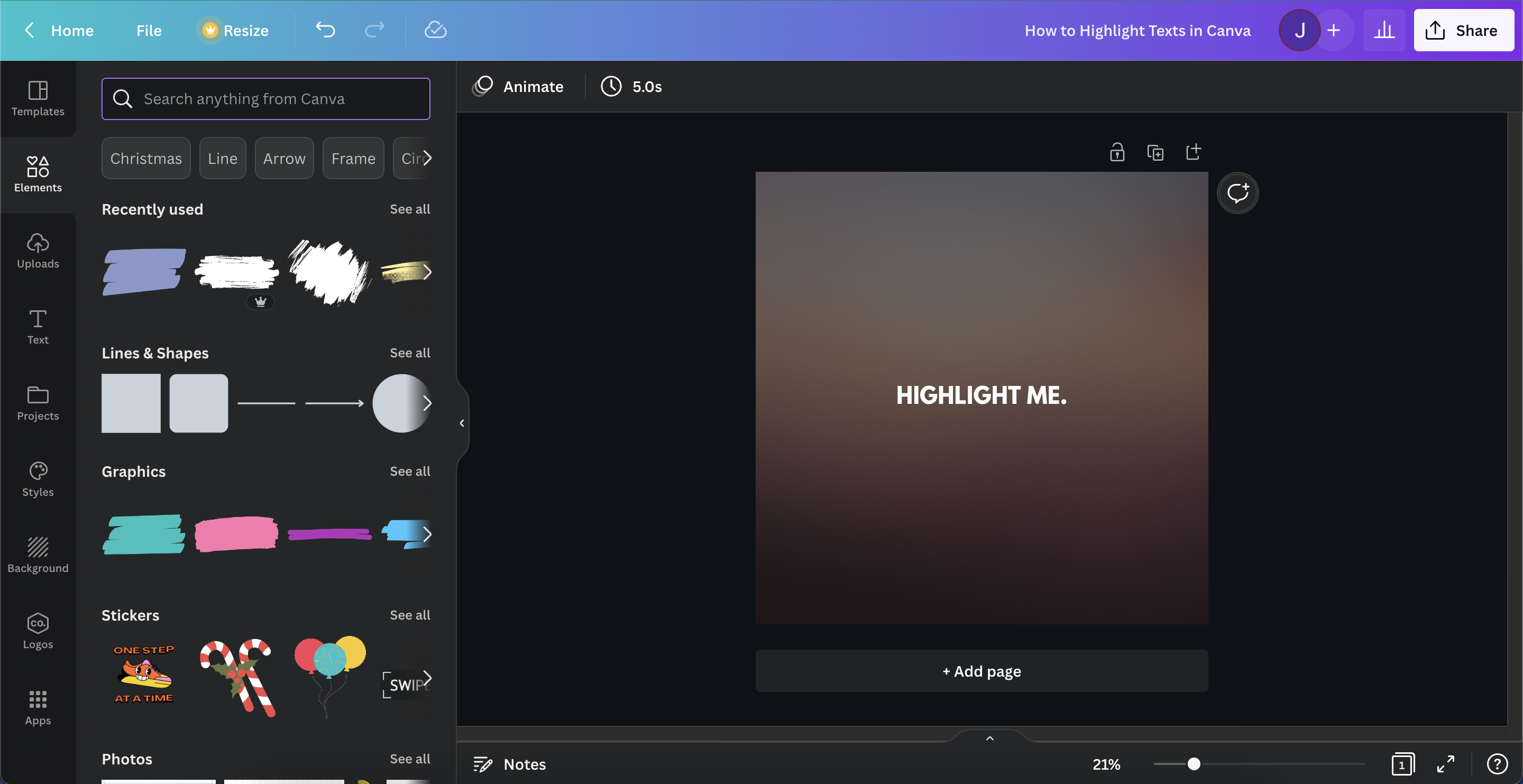
Step 2: Search for your Preferred Highlight Design
This is where you get creative! Here is where you think of highlight designs for your text. Need some ideas? Here’s what I’d recommend.
- Brush stroke
- Rectangle
- Neon border
- Blob
But if you just want a simple text highlight, then choose either the rectangle or square shape.
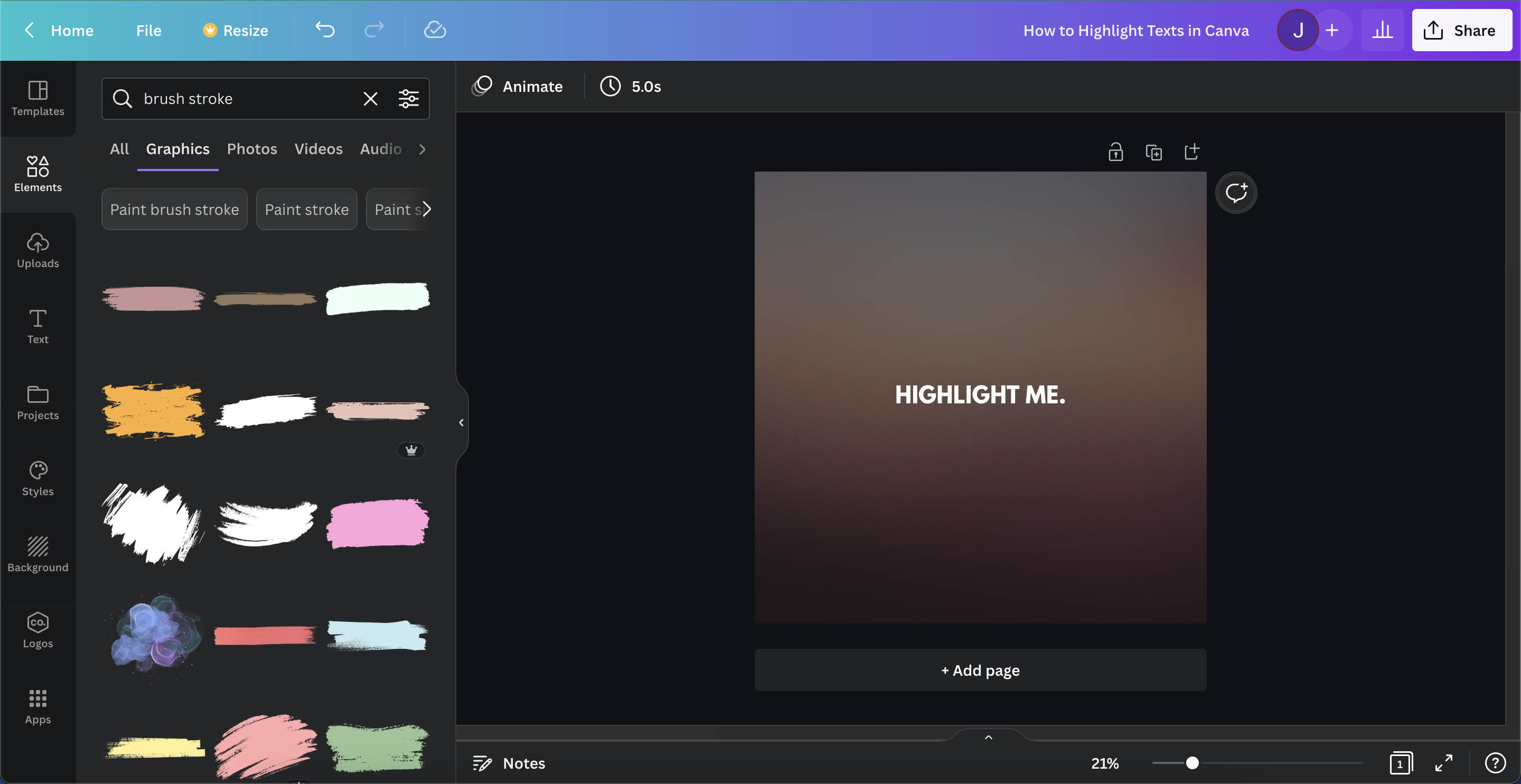
Quick tip: For better search results, select “Graphic” from the list just below the search bar.
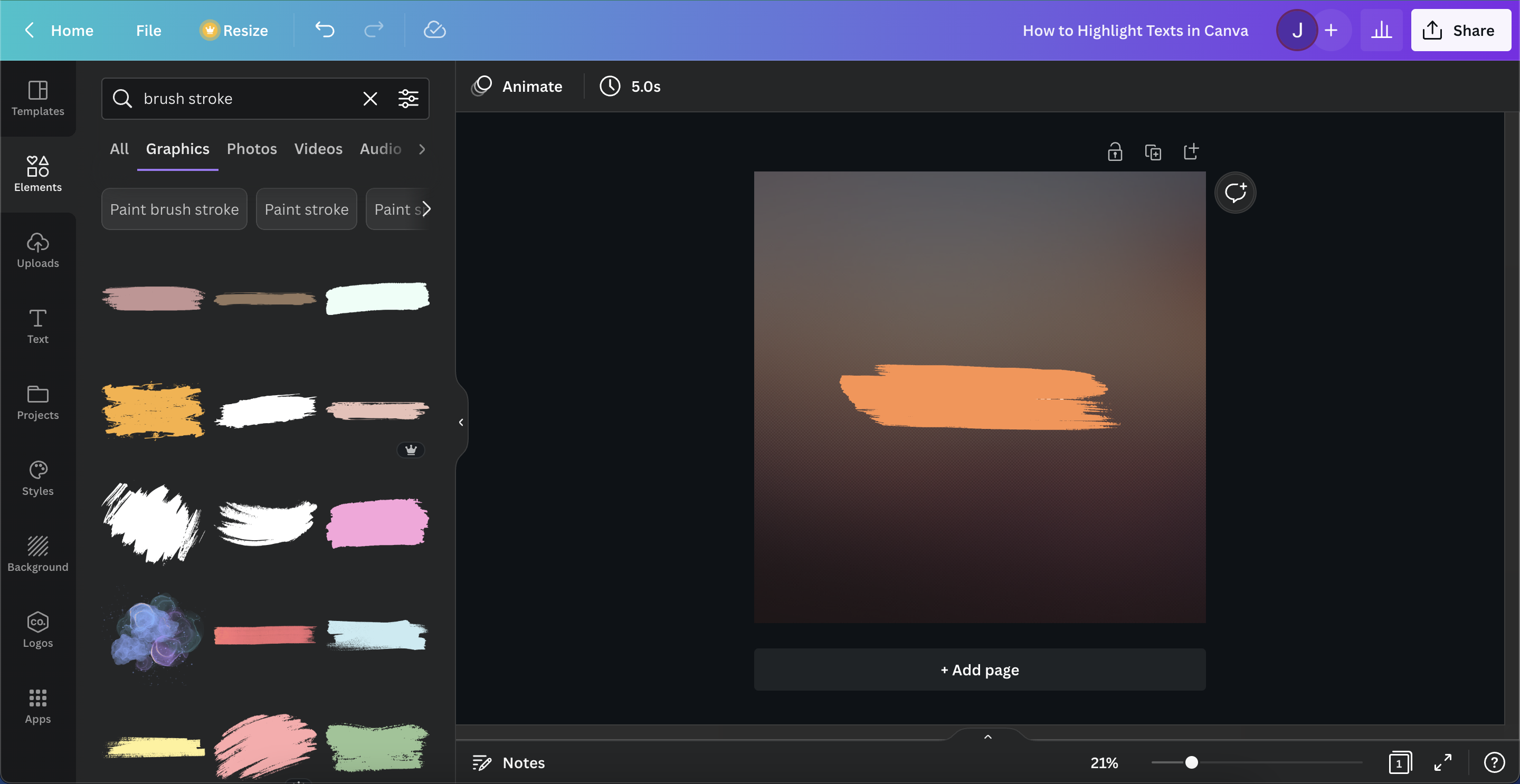
Step 3: Adjust your Chosen Shape
Now that you’ve chosen your shape, it’s time to adjust it to your text’s size and color! Start by clicking the shape. Then, drag the nodes on any of the 4 corners. For the color of your highlight, select the shape and click the color button on the upper left side of the toolbar. You can also rotate the shape by turning the cycling arrows clockwise or counterclockwise.
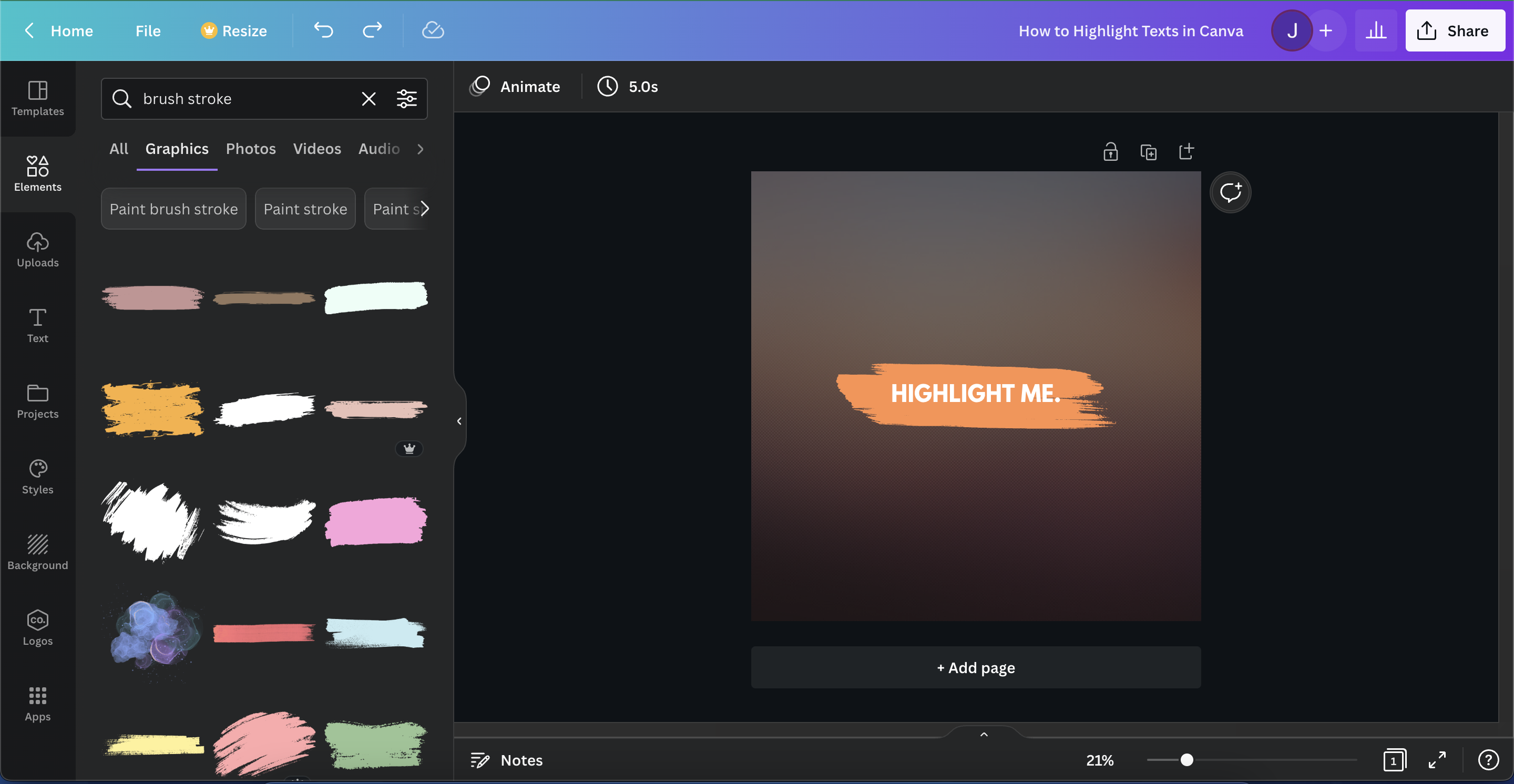
Step 4: Place it Behind Your Text
Sometimes when you drag the shape to the text, it goes over it. To solve this, you have to send it backwards. Here are 4 ways to do that:
- Right-click the shape and choose “Send backward”
- Click the shape, click the 3 dots on the newly shown pop-up, then choose “Send backward”
- Click the shape, from the toolbar on top, click Position, then choose “Backward”
- Click the shape, then (on Mac): “cmd + [“ or (on Windows): “ctrl + [“
How to Highlight Specific Words from your Text in Canva
Highlighting specific texts using the simple method doesn’t work. So what do you do?
In order to highlight specific words in the Canva app, all you have to do is to follow the Creative method. And instead of sizing it for the entire text, just make it small enough for the word you want.
Checklist Summary:
The Simple Way
- Select your text
- Click “Effects”
- Choose “Background”
- Adjust to your liking
The Creative Way
- Click “Elements” on the sidebar
- Search for a background highlight (ex. rectangle)
- Adjust the shape’s size and orientation
- Place it behind your text
Conclusion:
Highlighting in the Canva app is pretty easy when you know where to start. In fact, because of how flexible the tool is, there are different ways you can go about this. Canva lets you highlight texts in a simple, straightforward way and a creative way! With options to highlight only certain sections of a text when you feel like emphasizing a particular word.